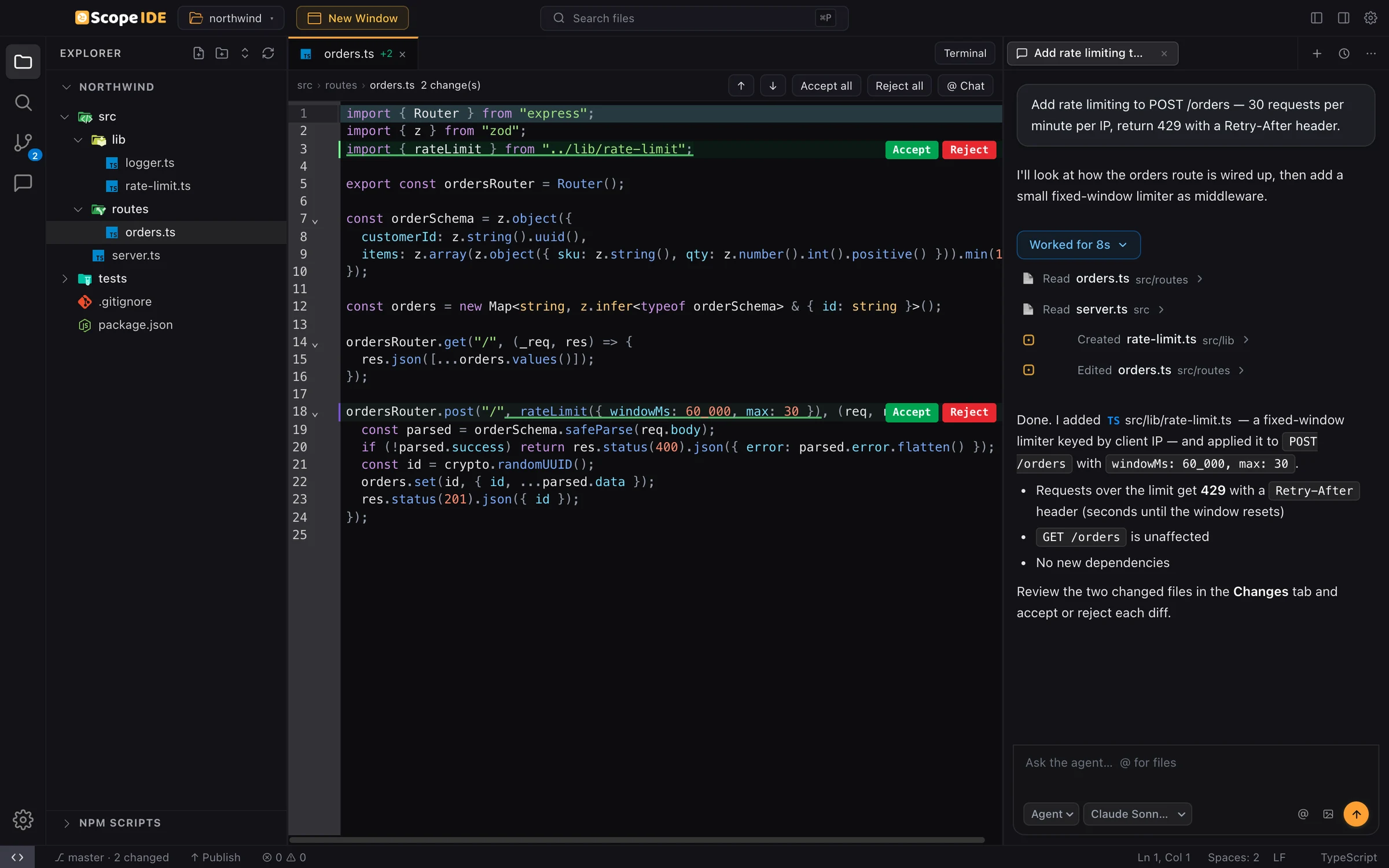
Download Scope IDE
Version 0.1.11 for macOS, Windows and Linux.
Prefer working in your terminal?
Install the Scope CLI agent globally via npm:
npm i -g @scopeide/cliHow to install
Choose your platform for exact step-by-step installation instructions.
macOS
- 1Download the .dmg file for your Mac architecture (Apple Silicon M1/M2/M3 or Intel).
- 2Double-click the .dmg and drag Scope into your Applications folder.
- 3Open Scope from Applications or Spotlight search.
Windows
- 1Download the Windows installer (Scope-0.1.11.exe).
- 2Double-click the .exe file to install. If SmartScreen appears, click More info → Run anyway.
- 3Launch Scope from the Start Menu or Desktop shortcut.
Linux
For Ubuntu, Debian, Linux Mint, Pop!_OS:
- 1Download .deb file to your Downloads folder.
- 2Open terminal in Downloads and install:
sudo apt install ./Scope-*.deb✨ How to launch: Click Scope in your Applications menu, or run in terminal:
scopeideScope-*.deb automatically matches whichever version you downloaded.How to update Scope
When a new version is released, simply install the latest version over your existing installation. Your settings, chat history, and workspace configurations are strictly preserved.
Download the new .deb and reinstall with apt:
sudo apt install --reinstall ./Scope-*.deb- macOS: Download the latest
.dmgand drag Scope into Applications, then click Replace. - Windows: Download and double-click the new
.exe. It automatically updates existing files.
npm i -g @scopeide/cli@latestTroubleshooting & Tips
Linux apt notice: "Download is performed unsandboxed as root"
This is a standard informational notice in Ubuntu/Debian when running apt install on a file in your home folder. It is not an error, and Scope is already installed successfully.
How to start Scope on Linux
Search for Scope in your desktop Application Launcher (Super / Windows key), or type scopeide in any terminal.
macOS "developer cannot be verified"
Right-click Scope in your Applications folder, choose Open, then confirm with Open. You only need to do this once on first launch.
Windows SmartScreen warning
Click More info on the prompt, then click Run anyway.
Sign in once, start building.
- 1Install and open Scope IDE.
- 2Choose “Sign in with browser” and approve the code on scopeide.com.
- 3Open a project folder and ask the agent for your first change.
No account yet? Create one.